Advanced Workspace Functionality
Requesting notification about application results
TIP
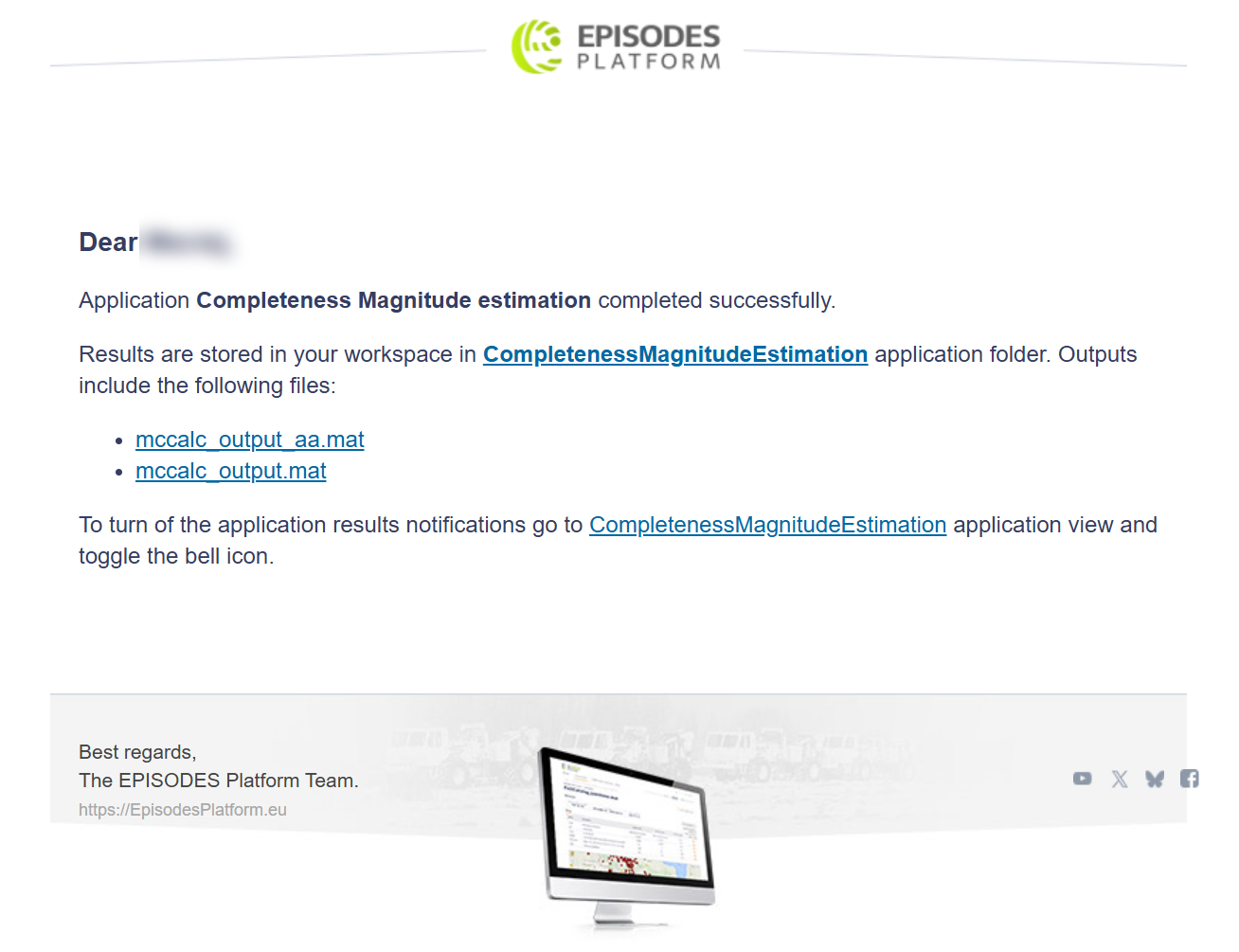
Computations of some applications take a considerable amount of time and you do not have to keep the EPISODES Platform open while waiting for their results. Instead, you can ask the portal to send you an e-mail message as soon as the application finishes. This option is available both for applications and workflows.
Contents of this guide
With this guide you will learn how to request an e-mail notification about the results of an application or a workflow and when such a message is sent. Please consult the Applications page for more information about creating and running applications.
How to request a notification
The notification is requested separately for each application and workflow in your workspace, with the bell button placed next to the Run and Abort buttons in the application panel.
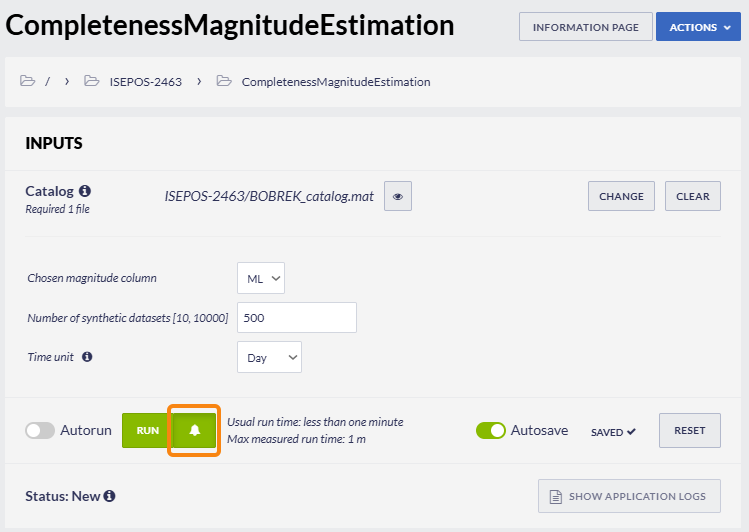
The button works as a switch and its appearance shows the current setting:
- a crossed-out bell on a grey button - notifications are switched off, which is the default setting,
- a bell on a highlighted button - notifications are switched on and you will receive an e-mail message when the application finishes.
Clicking the button takes effect immediately and a short confirmation message is displayed at the top of the portal window ("Notifications enabled. You will receive an email when application finishes"). The notification can be requested at any moment - before the application is run for the first time, as well as when it is already running.
A few properties of this setting are worth remembering:
- It is remembered until you switch it off. It is not reset when the application finishes, so every following run of that application - including a run triggered by autorun or started by another user - will result in a new message. If you combine notifications with autorun, keep in mind that every automatic rerun will send you an e-mail.
- It is personal. For an application that is shared with other users, every user decides for themselves - the button shows only your own setting and switching it off does not affect the other users. You can also request a notification for an application that somebody shared with you in read-only mode, even though you cannot run it yourself.
- The message is sent to the e-mail address of your account, in the language selected in your account settings.
When the notification is sent
The message is sent when the execution of the application ends, that is when the application reaches the Finished or the Finished with error status (see the table of application statuses). No message is sent for the intermediate statuses - Submitting, Queued and Running - nor when the execution has been stopped with the Abort button.
For workflows the notification concerns the workflow as a whole:
- when an application is a part of a workflow, it does not send its own message - a single message is sent when the whole workflow finishes,
- when workflows are nested in one another, the message is sent only for the outermost one.
To be notified about a workflow, switch the bell on in the panel of that workflow.